D1. The "What's Displayed" tab
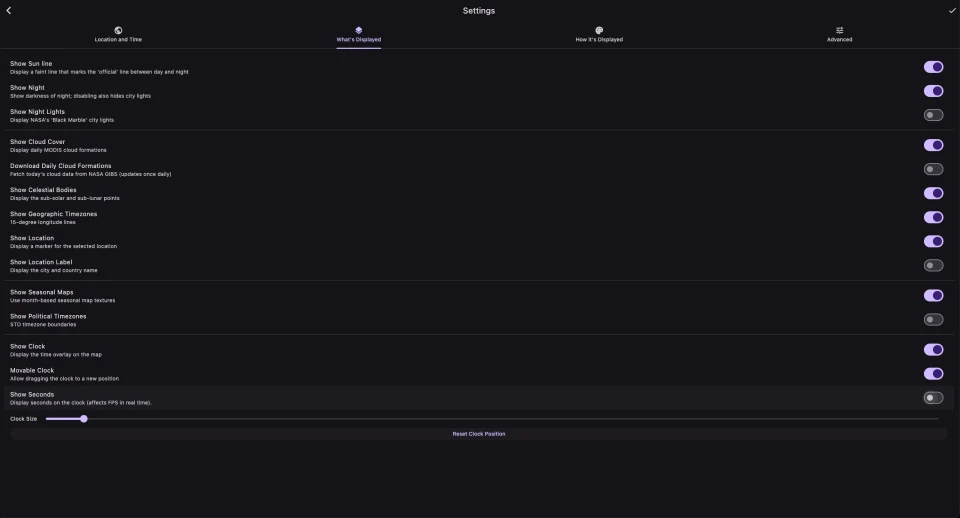
This is the on/off switch panel for every map layer. The full list, in tab order:
- Show Sun line — see B3
- Show Night — see B4
- Show Night Lights — see B4
- Show Cloud Cover — see B5
- Download Daily Cloud Formations (Premium, Live only) — see B5
- Show Celestial Bodies — see B6
- Show Geographic Timezones — see B7
- Show Location — see B8
- Show Location Label — see B8
- Show Seasonal Maps (Premium) — see B9
- Show Political Timezones (Premium) — see B7
- Show Clock, and — when the clock is on — Movable Clock, Show Seconds, Clock Size, Reset Clock Position — see D2. The Clock overlay
If you toggle a Premium feature while on the free tier, a small Premium badge flashes next to the control (with a click and, on mobile, a light haptic tap). The setting is not changed. Trying to enable the daily cloud download during a time-lapse flashes a Sim Mode badge the same way — it's a Live‑only feature.
D2. The Clock overlay
A small clock sits over the map showing local time on top and UTC underneath. Settings → What's Displayed has four related controls (visible while Show Clock is on):
- Show Clock — turn the overlay on or off. On by default.
- Movable Clock — when on (the default), you can drag the clock to a new position on the map; that position is saved.
- Show Seconds — adds the seconds digits. On by default. Useful, but it forces the app to redraw the clock every second even when nothing else is moving, which can slightly increase battery use when Live.
- Clock Size — a slider from 0.03 to 0.25 (a fraction of the screen's longer side). The default is 0.0543.
- Reset Clock Position — a button that snaps the clock back to its default top‑left position.
The clock is clamped to stay fully on screen, so if you drag it to a corner and then resize the window, it stays visible.
D3. Object, Text and Line Size
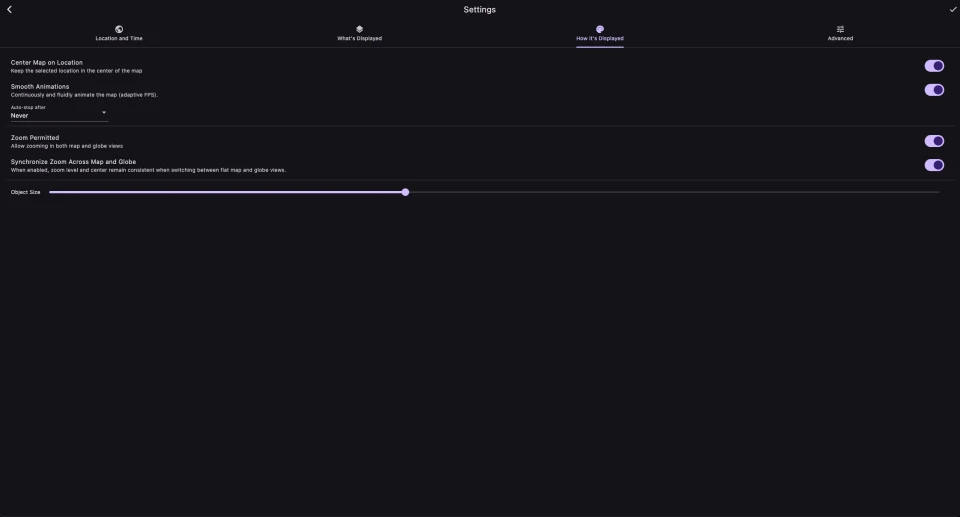
In Settings → How it's Displayed, three sliders scale the things drawn on top of the Earth. Each runs from 0.5× to 2.0×, and the defaults are the sizes we tuned the app to ship with — a little under 1×:
- Object Size — the point objects: the sub‑solar and sub‑lunar markers and the location marker. Default 0.82×.
- Text Size — the labels: the location label and the timezone labels. Separate from Object Size so you can make just the text bigger — the accessibility case. Default 0.81×.
- Line Size — the line work: the Sun line and the timezone boundary strokes. Default 0.75×.
Smaller values give a cleaner, minimal look; larger values make these elements more visible on a phone screen or from across the room. None of them affect the underlying Earth texture or the cloud overlay.
D4. Center Map on Location
In Settings → How it's Displayed, Center Map on Location (on by default) keeps your selected city in the middle of the view. The map wraps around it.
Turn it off and the map sits in its natural orientation (longitude 0° in the middle), and the location marker just appears wherever the city is. This is more useful when you're exploring with zoom/pan. Setting a location by long‑press also switches it off automatically, so the map doesn't jump under your finger (A3).
D5. The Cloud Tuning panel
(Some sliders Premium; see below.) For users who want to fine‑tune how the clouds look against the Earth, there's a hidden panel: long‑press the gear icon in the top‑right controls. It opens only if Show Cloud Cover is on.
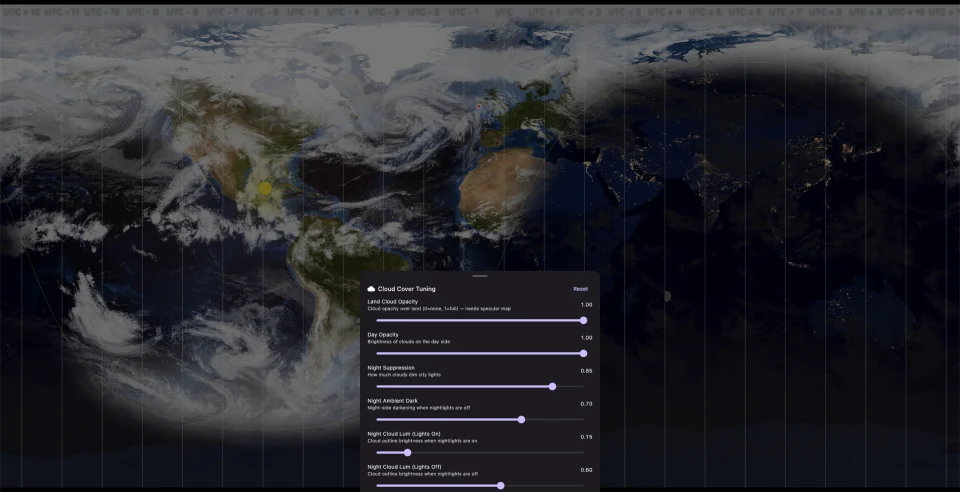
The Cloud Cover Tuning panel has six sliders (each 0 to 1), and the map updates live as you drag:
- Land Cloud Opacity — opacity of clouds where they sit over land. Available to all users. Default 1.00.
- Day Opacity (Premium) — brightness of clouds on the day side. Default 1.00.
- Night Suppression (Premium) — how much clouds dim the city lights beneath them. Default 0.85.
- Night Ambient Dark (Premium) — how dark the night side appears when city lights are off. Default 0.70.
- Night Cloud Lum (Lights On) (Premium) — brightness of cloud outlines on the night side when city lights are on. Default 0.15.
- Night Cloud Lum (Lights Off) (Premium) — the same, when city lights are off. Default 0.60.
On the free tier the Premium sliders appear dimmed with a small lock icon; tapping one flashes the Premium badge instead of moving it.
There's a Reset button to put every slider back to defaults. Changes are saved immediately.